




Set up your wallet
The Expensify Wallet allows you to send and receive peer-to-peer payments, such as expense reimbursements or transfers between colleagues. To use it, you’ll need to connect a personal bank account and verify your identity.
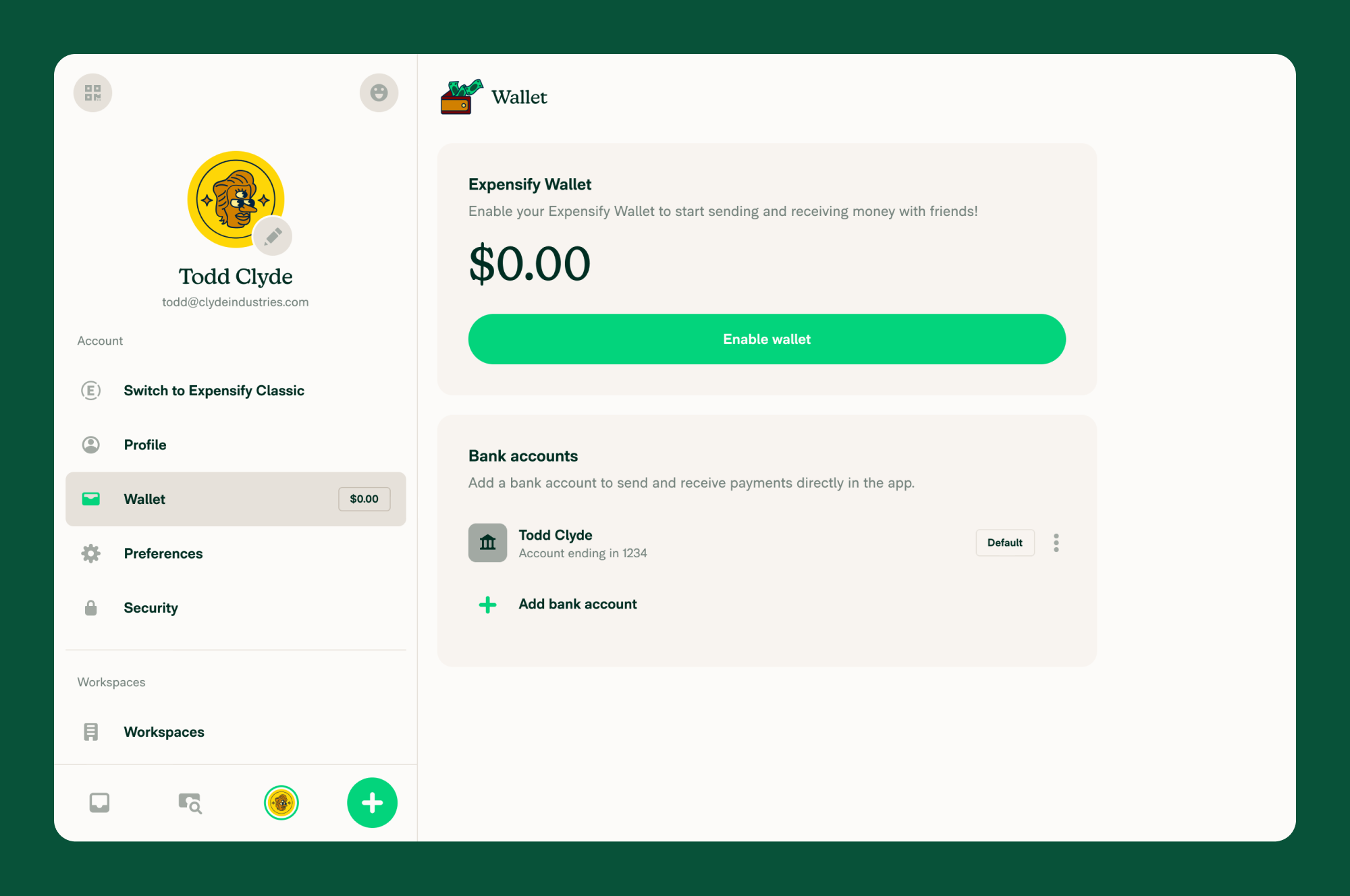
Enable Your Expensify Wallet
To get started:
- In the left-hand navigation bar (LHB), click Wallet.
- Click Enable Wallet.
Connect Your Personal Bank Account
If you haven’t already connected a personal bank account, you’ll be prompted to:
- Click Continue.
- Follow the steps to connect a personal bank account via Plaid.
Note: Plaid is a secure, third-party service used to safely connect your bank account to Expensify. Your credentials are never stored or shared by Expensify.
If you’ve already connected your account, you’ll skip this step.
Enter Personal Information
You’ll be asked to enter the following:
- Full legal name
- Residential address
- Date of birth
- Phone number
- Last 4 digits of your Social Security Number (SSN)
Click Save & Continue to proceed.
Complete Identity Verification with Onfido
- Review and accept the Onfido terms.
- Choose a method to verify your identity on your mobile device:
- QR Code
- Text message
- Secure link
- On your mobile device, follow the prompts to:
- Take a clear photo of your government-issued ID
- Submit a short selfie or video (as prompted)
Note: Onfido is a secure identity verification provider. Expensify uses Onfido to meet compliance and security standards. Once completed, Onfido will close automatically and return you to your Expensify Wallet.
Wallet Activation Complete
When verification is successful, your Expensify Wallet will be fully enabled. You’ll be able to:
- Receive and send peer-to-peer payments
- Get reimbursed for expenses
- Transfer funds with no additional fees
Troubleshooting
Wallet verification is stuck in a pending state
If your wallet setup appears to be stuck and is not progressing:
- Close the Expensify app or browser tab completely and reopen it.
- Go to Wallet and check whether the setup flow resumes automatically.
- If a specific step (such as Onfido verification) shows as pending for more than a few minutes, try completing it again.
- Ensure your internet connection is stable, as the verification steps require network access.
If the wallet remains stuck after retrying, contact Concierge for help.
Identity verification fails during wallet setup
If Onfido cannot verify your identity during wallet setup:
- Make sure you are using a clear, valid, non-expired government-issued photo ID.
- Take the photo in a well-lit area and ensure all four corners of the ID are visible.
- For the selfie or video step, hold the camera steady and ensure your face is clearly visible.
- Try a different browser or device if errors persist.
For detailed troubleshooting steps, see Resolve Errors Adding a Bank Account.
If verification fails after multiple attempts, contact Concierge. An agent can review your case and may offer an alternative verification path.
Wallet shows as enabled but I can’t send or receive payments
If your wallet appears to be active but payments are not working:
- Confirm that a personal bank account is connected. Go to Wallet and check the Bank accounts section. If no bank account is listed, you will need to connect a personal bank account.
- Make sure the bank account is not in an error state. If you see an error badge, follow the instructions shown to resolve it.
- Check that you have completed all wallet setup steps, including identity verification. A partially completed setup may show the wallet as enabled but restrict functionality.
- Try logging out and logging back in to refresh your wallet status.
If none of these steps resolve the issue, contact Concierge for assistance.


